Building the Journal, Part 3: Making Sure It Was Ready
Previously: Building the Journal, Part 2: From Idea to Website
A website can be working without being ready.
That sounds like the same thing, but it is not.
A car can start, move under its own power and stop when asked. That does not automatically mean you would lend it to someone you like. It might simply mean the handbrake is surprisingly effective.
By this stage, Built to Last. No Warranty. had hosting, WordPress, pages, menus and the beginnings of a proper identity. You could type in the address and something appeared on the screen.
Technically, it worked.
Admittedly, “something appeared on the screen” is also how several of my computer problems have started.
The next job was making sure it was ready for visitors.
Backups Before Bravery

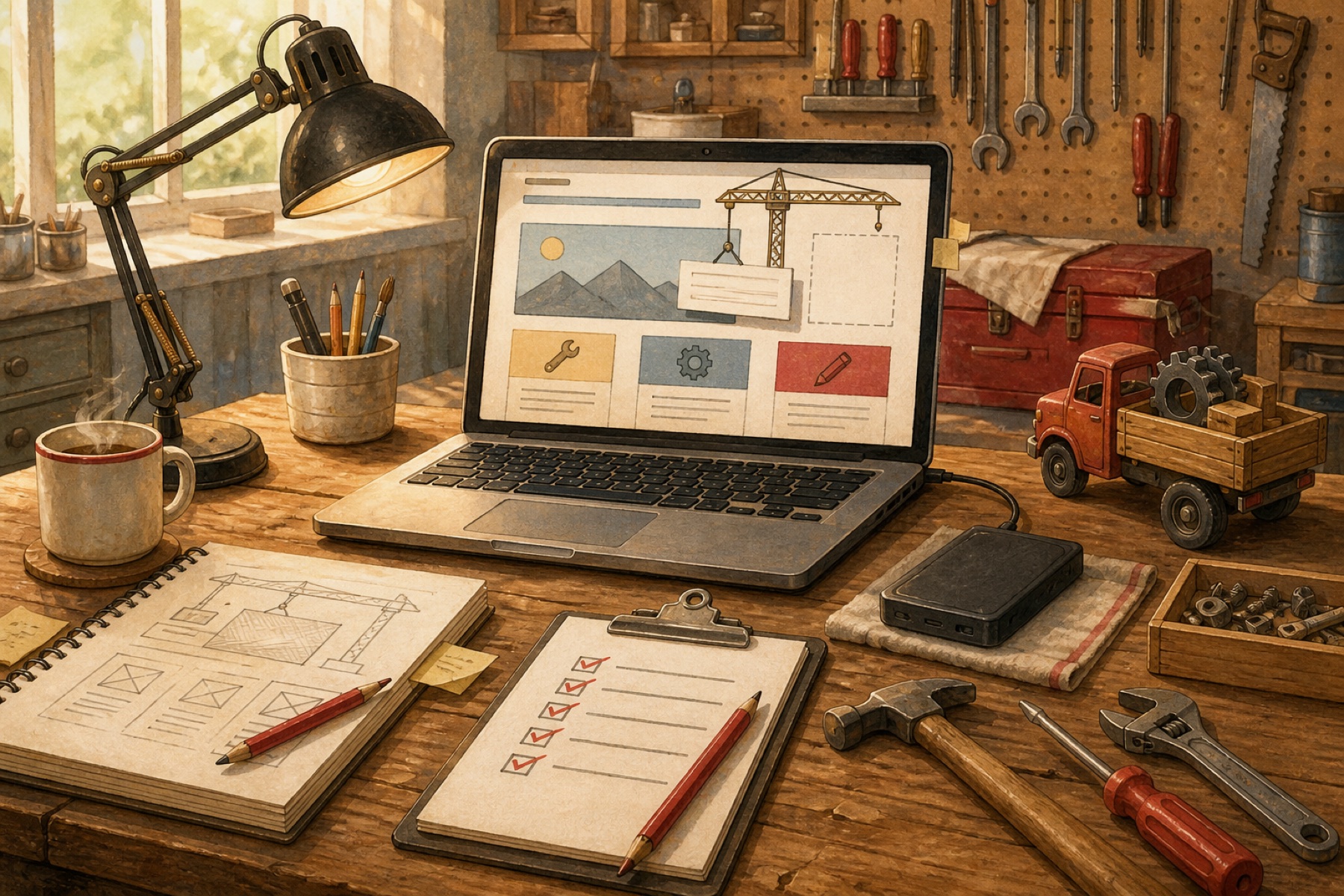
Before making bigger changes, I wanted a reliable way back if something went wrong.
Websites have an impressive ability to behave perfectly until the exact moment you decide to improve them. One innocent-looking setting can occasionally make the whole thing disappear faster than a ten-millimetre socket.
The backup plan was simple:
- The database would be backed up daily.
- Website files would be backed up weekly.
- A full manual backup would be made before important changes.
- Copies would be stored away from the hosting account.
- A monthly copy would also be kept locally.
More importantly, the first complete backup was created and checked.
A backup that has never been tested is really just a hopeful collection of files. It might save the day, or it might sit there looking reassuring while being about as useful as an umbrella made from kitchen roll.
Back up first. Be brave second.
That gave me the confidence to continue without treating every button in WordPress as though it might launch something.
There are a surprising number of buttons labelled “Save” that make you wonder whether they mean save the page or save yourself.
The Security Problem Nobody Could See
The next challenge involved Wordfence, the security plugin originally chosen to help protect the website.
Most of it worked correctly. WordPress could connect to the internet, scheduled jobs were running and the website could communicate with Wordfence.
The problem appeared when Wordfence tried to scan the site.
To complete a scan, part of Wordfence needed to leave the website and then connect back to it. Namecheap’s hosting security saw that returning connection and presented it with a browser check.
That makes sense for an unknown visitor. It does not work so well when the visitor is actually the website trying to speak to itself.
The result was that Wordfence received a “Checking your browser” page instead of the response it expected. The scan could not start.
In plain English, the security systems were getting in each other’s way.
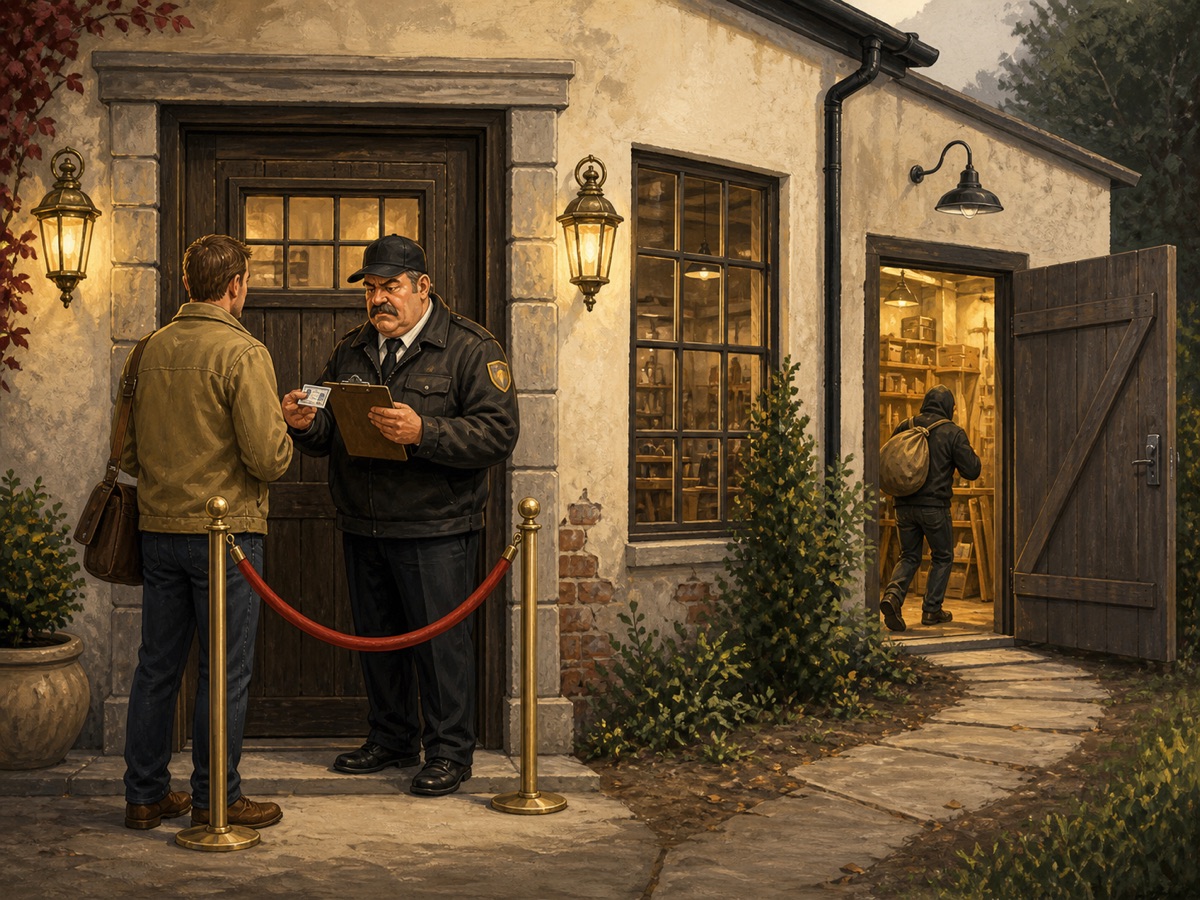
It was a little like employing two security guards who spend the entire shift asking each other for identification while everyone else quietly gets on with their day.
The Front Door and the Back Door
The best explanation I found was this:
A security guard at the front door while the back door is open.
The hosting protection was the security guard. It was checking visitors and helping to stop unwanted traffic.
One suggested solution involved something called whitelisting.
In simple terms, a whitelist is a trusted guest list. It tells a security system to allow certain traffic through without applying all its usual checks.
A narrow exception for one known and trusted connection can sometimes be useful. Whitelisting an entire domain is much broader. It risks telling the security guard to wave through more visitors than intended.
Namecheap later told me that the domain had been added to an Imunify360 whitelist. I had not approved that change, and testing showed that the Wordfence scan still failed. It had potentially reduced one layer of protection without solving the original problem.
That did not feel like a sensible trade.
There is little value in getting a security scan to display a reassuring green tick if the method used to achieve it weakens the security around the rest of the site. It would be rather like removing the batteries from a smoke alarm because the beeping was annoying, then congratulating yourself on how quiet the house had become.
Do not weaken security merely to make a security test pass.
Namecheap support investigated the problem, but the available shared-hosting controls could not provide the narrow exception that was needed. The site required a precise adjustment for one type of trusted connection, not a large hole in the fence with a handwritten sign saying, “Probably fine.”
The front door was less guarded and the scan remained unimpressed.
That confirmed it was not a suitable solution.
Finding a Better Fit

Wordfence is a respected security product, and Namecheap’s hosting protection was doing what it had been designed to do.
The problem was compatibility.
Sometimes two perfectly good components simply do not work together properly. Anyone who has spent time around tools, vehicles or machinery will recognise that particular nuisance.
Both parts can be correct according to the label and still refuse to cooperate once they are introduced. This usually happens immediately after you have put the receipt somewhere safe.
Rather than keep forcing the issue, I added MalCare as the practical solution.
MalCare provided a security approach that worked with the hosting arrangement without requiring the wider Namecheap protection to be bypassed. It meant the website could be monitored and checked without opening a large gap simply to satisfy one scanning process.
That was the important result.
The aim was never to prove that one security product was better than another. It was to find a sensible combination that worked safely on this particular website.
Choosing the right tool is often more useful than spending hours trying to make the wrong one fit.
This is an important lesson, although it has yet to stop me trying a slightly different screwdriver before admitting I need the correct one.
Giving the Website Proper Contact Addresses
A public journal also needed proper contact details.
Two addresses were created:
hello@builttolastjournal.co.uk
This is the public address for readers, questions and general contact.
website@builttolastjournal.co.uk
This is used for WordPress administration, website notifications and automated messages.
Keeping them separate makes the system easier to manage. A friendly message from a reader should not disappear among update notices, password alerts and automated reports insisting that something urgently needs attention when it mostly wants to sell you an upgrade.
The website email system was configured and tested successfully. Messages sent by WordPress arrived as expected, which is the sort of small result that produces a surprisingly large amount of relief.
I sent a test email.
It arrived.
There was no smoke, no warning light and no request to renew something I had installed seven minutes earlier.
I considered that a success.
One Home and One Signpost
The journal had two domain names:
- builttolastjournal.co.uk
- builttolastjournal.com
The .co.uk address was chosen as the main home of the website. It suits a British journal and feels natural for the audience and personality of Built to Last. No Warranty.
The .com address was kept as a useful alternative, but visitors using it are permanently redirected to the .co.uk website.
That prevents the journal from being split across two addresses. Search engines, links and visitors all arrive at the same place.
It is the online equivalent of putting a clear sign at the end of the road rather than letting people wander around the industrial estate looking for Unit 14B.
Both roads now lead to the same workshop. One simply takes a very short and completely unnecessary diversion.
Privacy, Cookies and Accessibility
Some pages are not especially exciting to build, but they matter.
The website needed clear information about:
- Privacy
- Cookies
- Accessibility
Nobody starts a website because they have always dreamt of writing a Cookies page. If they claim otherwise, it may be worth checking their browser history.
The Privacy page explains how personal information may be handled, particularly when someone uses the contact form.
The Cookies page explains what the website stores and why. At launch, the intention was to keep this as restrained as possible, without unnecessary tracking or advertising technology.
The only biscuits I really wanted visitors to encounter were the sort that go well with tea. Unfortunately, websites insist on using the same word for something considerably less enjoyable.
The Accessibility page sets out the intention to make the journal readable and usable by as many people as reasonably possible.
These pages are not there simply to fill space in the footer. They are part of treating visitors properly.
If someone contacts the journal, they should know what happens to their information. If the website stores something on their device, they should understand why. If someone needs larger text, clearer navigation or keyboard access, the site should not make life unnecessarily difficult.
Accessibility is also good practical design. Clear headings, readable type, sensible colours and straightforward navigation help everybody.
A website should not require perfect eyesight, specialist equipment and the reactions of a fighter pilot just to find the Contact page.
From “Make It Work” to “Tell the Story”
At the beginning, most decisions were practical.
- Could the domain reach the website?
- Could WordPress send an email?
- Would the backups run?
- Did the menus work?
- Was the site reasonably protected?
- Had I accidentally bought anything ending in “Premium Plus Pro”?
Those questions had to be answered first. There was no point polishing an article if the website might lose it, hide it or refuse to send a message from the contact form.
Once those foundations were in place, the purpose of the work began to change.
The question was no longer simply:
How do I make the website work?
It became:
How do I use the website to tell the story?
That felt like an important milestone.
Built to Last. No Warranty. was no longer a collection of settings, plugins and half-finished pages. It had started to become a proper journal with its own voice, structure and responsibilities.
It was backed up. It had working contact addresses. Its domains led visitors to the right place. Its privacy and accessibility foundations were present.
Most importantly, security decisions had been made on the basis of what genuinely protected the website, rather than what produced the neatest result on a screen.
It was not perfect.
That would have been rather off-brand.
But it was becoming ready.
Workshop status: Checked, backed up and considered fit for continued use. No warranty implied. Any rattles will be investigated when they become loud enough.
Continue the story
Previous: Building the Journal, Part 2: From Idea to Website.
Next: Building the Journal, Part 4: Taking It Into the Real World.